



Do you want AI to help draft documents in Word or help create tables and explain formulas in Excel without switching between web and programs? Claude and ChatGPT have add-ons, or Add-in The add-ons that open as sidebars in Office allow you to type commands and work with open files
From our tests, installing add-ons and logging in on Office Professional Plus 2019 and Office Professional Plus 2021 can be done, so it’s not necessary to conclude that everyone must buy Microsoft 365 Before trying to install, note that results may vary depending on the Office version, build, and organizational policies. Specifically, for Claude for Excel, the developer’s documentation specifies requirements for Windows Excel using a Microsoft 365 subscription. Therefore, you should check the latest conditions before deciding to purchase or upgrade.
Pre-installation preparations
- Word or Excel programs and internet Use a genuine copy. A cracked copy may lose its connection to the service.
- account Microsoft accounts to access Add-ins or Microsoft Marketplace: if the system requires login, typically free registration
- ChatGPT or Claude account for add-in login AI account is separate from Office usage rights
- If it’s an organizational device, you may need to have the system administrator authorize Marketplace or Add-in beforehand
ChatGPT for Word and Excel is available in Free and paid packages, including monthly plans, with usage limits based on the package. Claude for Excel specifies Pro, Max, Team, and Enterprise packages. Check the latest pricing and terms with the provider before signing up, as they may change. Installing an Add-in does not mean unlimited AI usage (usage is limited by the AI package)
How to install Claude and ChatGPT in Word or Excel
This step uses the Add-ins menu in Office on Windows. The menu name or appearance may vary depending on the version
1. Open Word or Excel and select Add-ins
Open the program and create a new blank document or workbook at the tab Home Look for the button Add-ins If not found, check the tab Insert and look for Add-ins or Get Add-ins

2. Search for add-ins and check the developer name
Open the Add-ins search page or select More Add-ins / Store If available, search through the list one by one
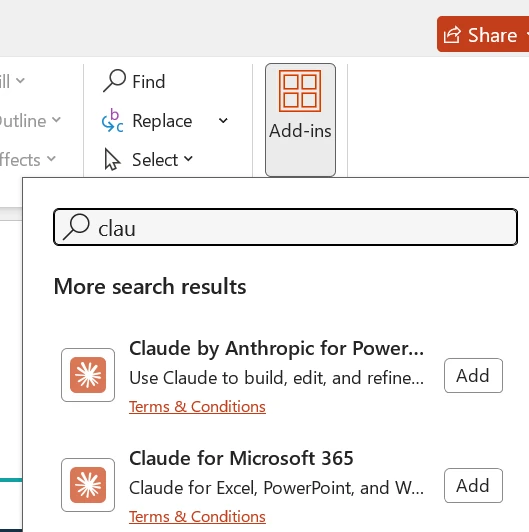
Claude: Type Claude by Anthropic In the search bar, then select the results for Anthropic for the program you’re using. Check the full name and publisher on the details page before clicking Add The displayed name may be truncated when the screen space is narrow Do not select another one for 365
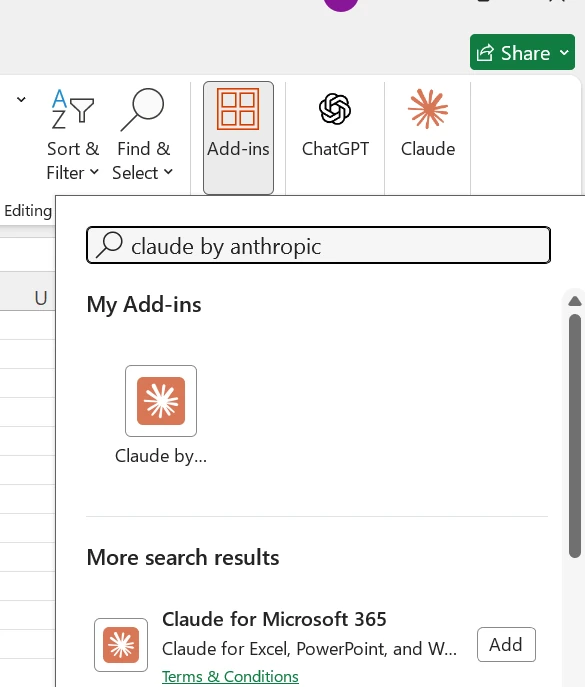
In PowerPoint, the search results may show a name starting with Claude by Anthropic for Power… Open the details of the full name and publisher before installing
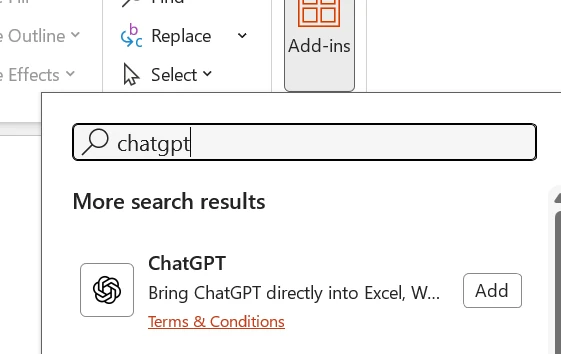
ChatGPT: Type ChatGPT Then select the result name ChatGPT With the publisher being OpenAI, LLC Before clicking Add Because there may be add-ins with similar names from other developers Having the word GPT or ChatGPT in the name alone does not confirm it is an OpenAI add-in
The example image also shows the list Claude for Microsoft 365 Separately
If the system allows you to sign in with Microsoft, follow the on-screen instructions and read the permissions requested by the add-in before confirming. If the add-in is not found in the program, start from ChatGPT page in Microsoft Marketplace or Claude page in Microsoft Then verify the name and publisher before installing
3. Open Add-in and sign in to AI
After installation, return to Word or Excel and select ChatGPT or Claude From the toolbar, if the button is not visible, open the Add-ins menu to view the installed list and select the add-in you want. Then sign in with the account of that service.

Once opened, you will see a side chat bar. You can type commands in the text box. If you want to use both services, install and sign in separately. In Word, if additional checks are performed, both Claude and ChatGPT buttons will appear on the Home tab.
Try ChatGPT to draft documents in Word
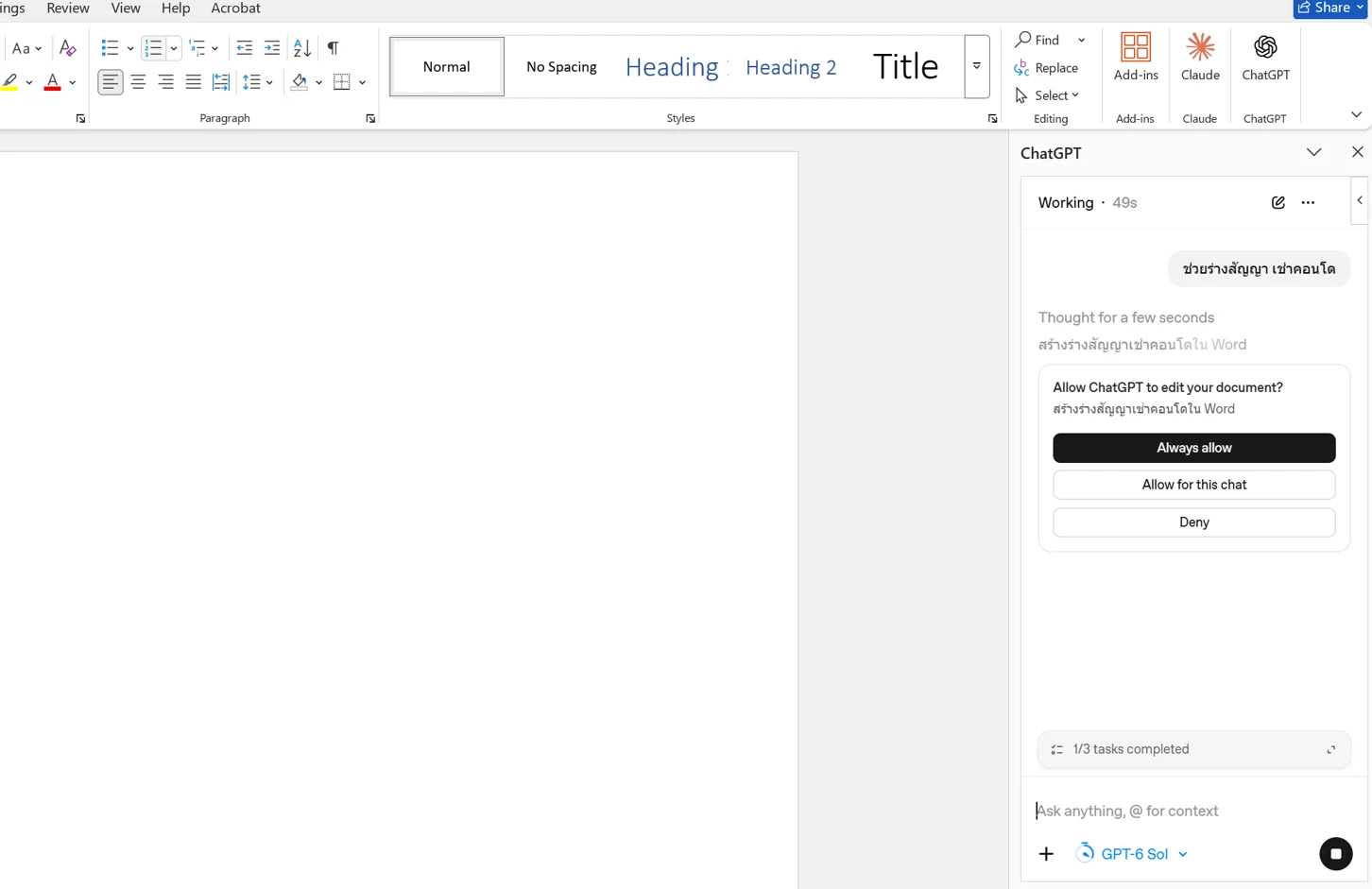
In the trial, we open ChatGPT in Word and type commands “Help draft a condominium rental agreement” After the program displays a request to edit the document, before selecting ‘Allow’, verify that the document you opened is the actual file you want the AI to edit.
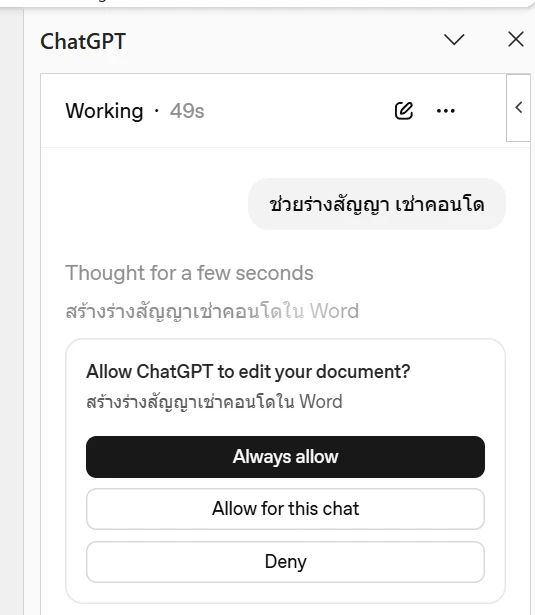
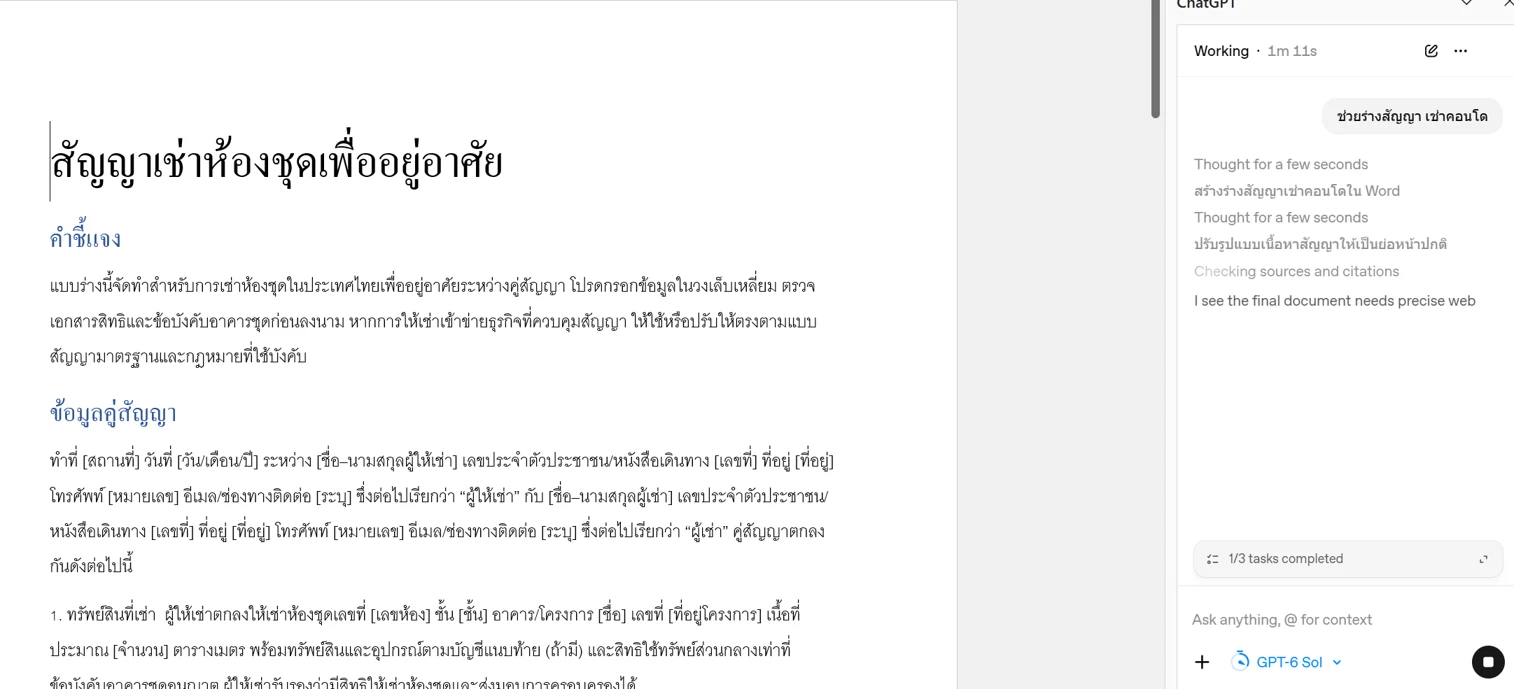
After permission is granted, the draft content appears directly in the Word document, which can then be edited further in the document. This image is an example of the draft and is not evidence that the contract content is complete and accurate. You should check the details and have knowledgeable personnel review important documents before using them.
Other prompts you can try:
- “Help draft a polite email notifying the recipient of a submission deadline”
- “Summarize this document into short topics and identify additional points to check”
- “Make the selected text easier to read while preserving the original meaning”
What can AI help with in Excel?
Open the workbook, then open Claude or ChatGPT in the sidebar, and describe the task you want, for example
- “Explain the formula in this cell in simple terms”
- “Help create a monthly income and expense spreadsheet and add a formula to sum the totals”
- “Check where the date columns have inconsistent formats and suggest solutions”
- including help with GL accounting entries, VLOOKUP and XLOOKUP
Both services state that they can help with workbooks and formulas. The actual capabilities depend on the account, version, and permissions set up. This set of images shows the button locations and experiments in Word. The Excel examples above are recommended commands and have not been tested for cell resolution in this image set.
Before giving AI access to important files, back up the file, check formulas, numbers, and cells that will change, especially for accounting or files containing personal data. Consider the data policies of the service and organization before sending data to AI.
Does Office 2019 and 2021 work?
From our experiments, installation and login are possible for both Office Professional Plus 2019 and Office Professional Plus 2021 The image shows the add-in buttons and ChatGPT examples in Word, but the image alone does not specify the Office version or confirm that all functions work across each version.
There is a discrepancy in the official information: Microsoft’s Claude page shows Word and Excel 2016 (no one has tried 2016 yet, please share if you have) or newer on Windows, but the Claude for Excel documentation specifies Excel on Windows using a Microsoft 365 subscription and a minimum build. Therefore, the trial experience is not a guarantee that every machine or every function in Office 2019/2021 will be officially supported. For ChatGPT, check the latest requirements of the add-in and the account used as well.
Try ChatGPT to design slides in PowerPoint
Besides Word and Excel You can also use add-ins to help create slides in PowerPoint Both ChatGPT and Claude have add-ins for PowerPoint according to the service provider’s information. Open PowerPoint and go to Home > Add-ins Search for Claude by Anthropic or ChatGPT, verify the publisher, click Add, then open from the toolbar and sign in with the account of that service.
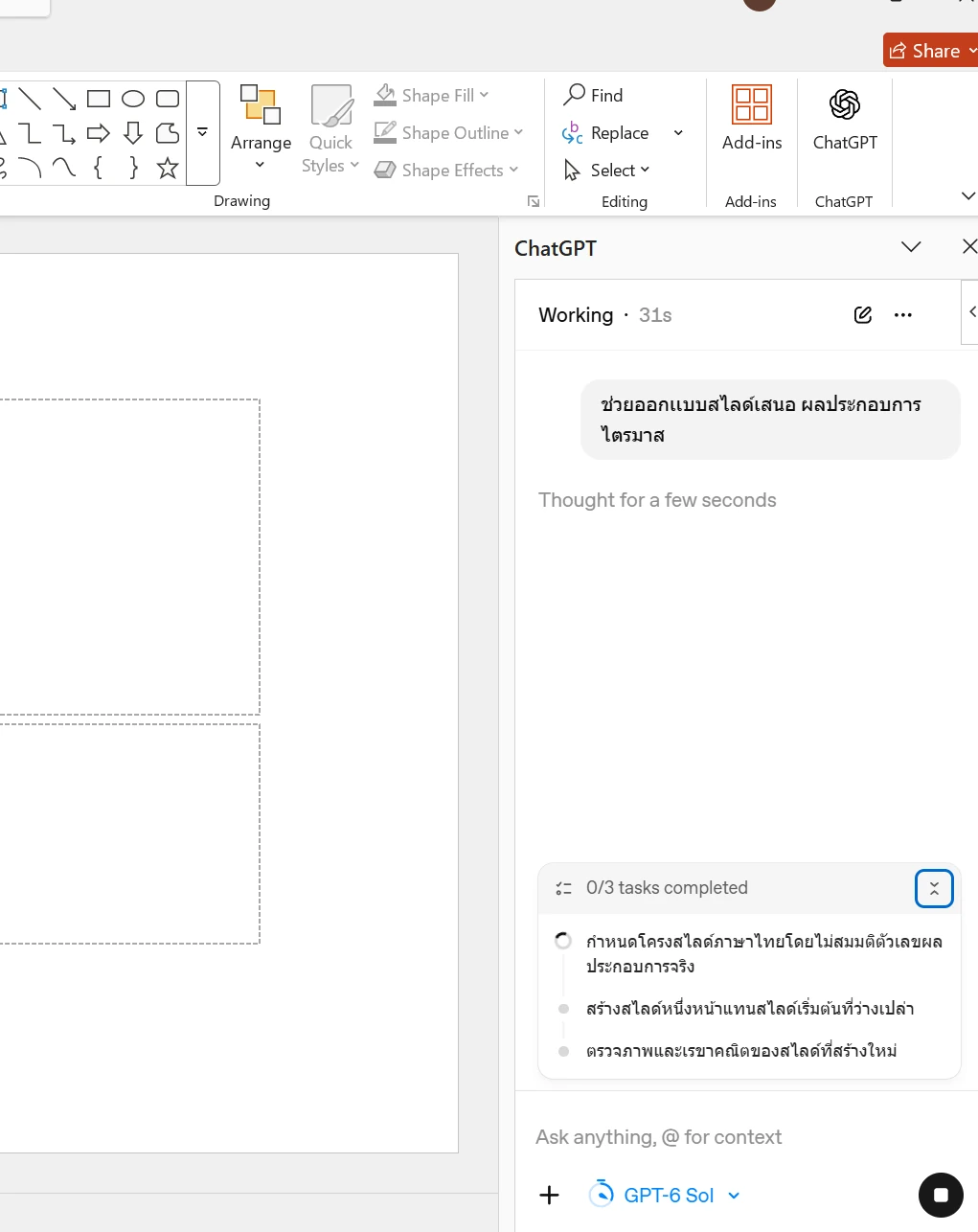
In the PowerPoint trial, we open ChatGPT and type the command “Help design slides presenting quarterly results” The side panel then shows it is outlining and creating slides.
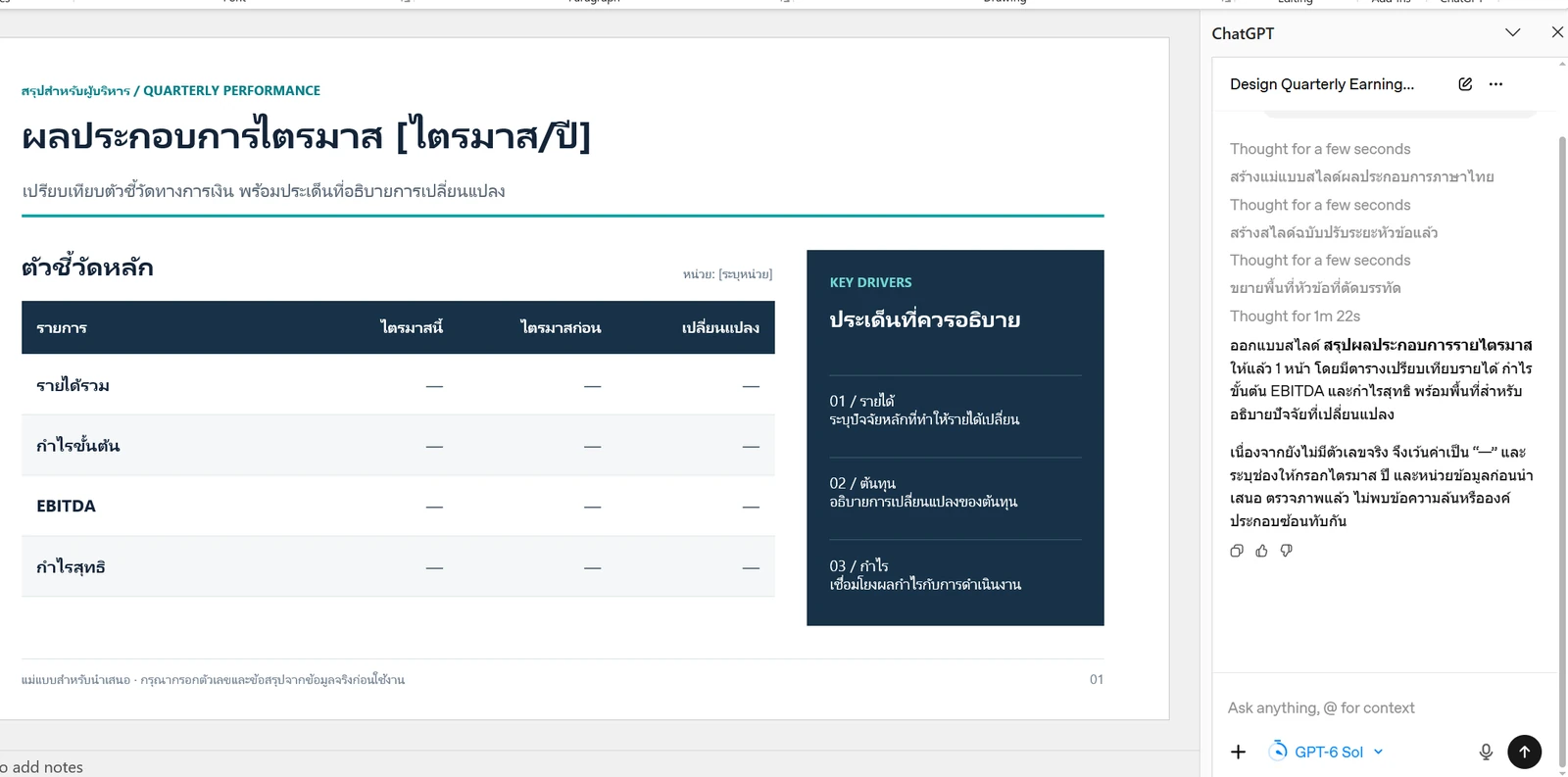
The result is a 1-page summary slide with a comparison table and space for explaining key factors, leaving numerical fields blank because the actual financial performance data was not specified in the command
Example commands that can be adapted, such as “Help draft a slide summary of sales results from the provided data, separated into outcomes, key points, and next steps”. The more specific details you provide about the data, audience, and desired format, the more accurate the results can be. Before using, check all numbers, text, and layout on every page
This trial set shows ChatGPT in PowerPoint Claude for PowerPoint is available according to the service provider’s information, but there are no experimental results of Claude in PowerPoint in this article. Availability and features depend on the program version and account
If the Add-in is not found or you cannot log in
- Check the name and publisher, and try searching directly from the Marketplace
- Check your internet connection and try restarting Word or Excel
- Check your Microsoft account and AI account, as well as your service package and limits
- If it’s an organization device, ask the administrator whether Office Store and the add-in are authorized
- Check the version and build in File > Account > About Word / About Excel Then compare with the developer’s current requirements
If you can open the AI bar but cannot edit files, check the permission messages and file rights first. Try with a copy that contains no important data, and check the results every time.


Comments