


Do not rush to buy a new key for Windows 11 activation without checking first Try opening the Activation page to view the error code first, then check whether the machine is installed as Home or Pro and if it matches the original key or license. In some cases, this can be fixed by connecting to the internet, using the troubleshooter, or reinstalling the Windows version that matches the original license.
This guide checks each point for computers with newly installed Windows, computers with a replaced motherboard, and computers that show an error after a key is entered. It explains what to try next and when to contact the seller.
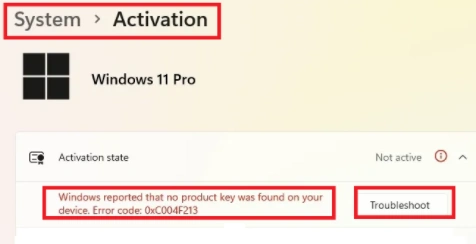
Open the Activation page and view the message
- Open Start > Settings > System > Activation or Settings > System > Activation
- Check the version name at the top, such as Windows 11 Home or Windows 11 Pro
- Expand the section Activation state or Activation status To view the status and messages below
- If activation fails, note the error code, such as
0xC004F213or take a screenshot of the screen
If it shows Active or the message that says ‘activated’ means the system has been successfully activated, while Not active This means it was not successful. Use the text and code you see as a starting point for troubleshooting. Menu names may vary slightly depending on the language and version of Windows.
Some devices may display the message Digital license or digital licence, means an activation entitlement is already linked to the device, so you may not need to enter a new key when reinstalling the same Windows edition on the same computer. You can read the meaning of each status from Microsoft Activation Guide
Check that it is Home or Pro
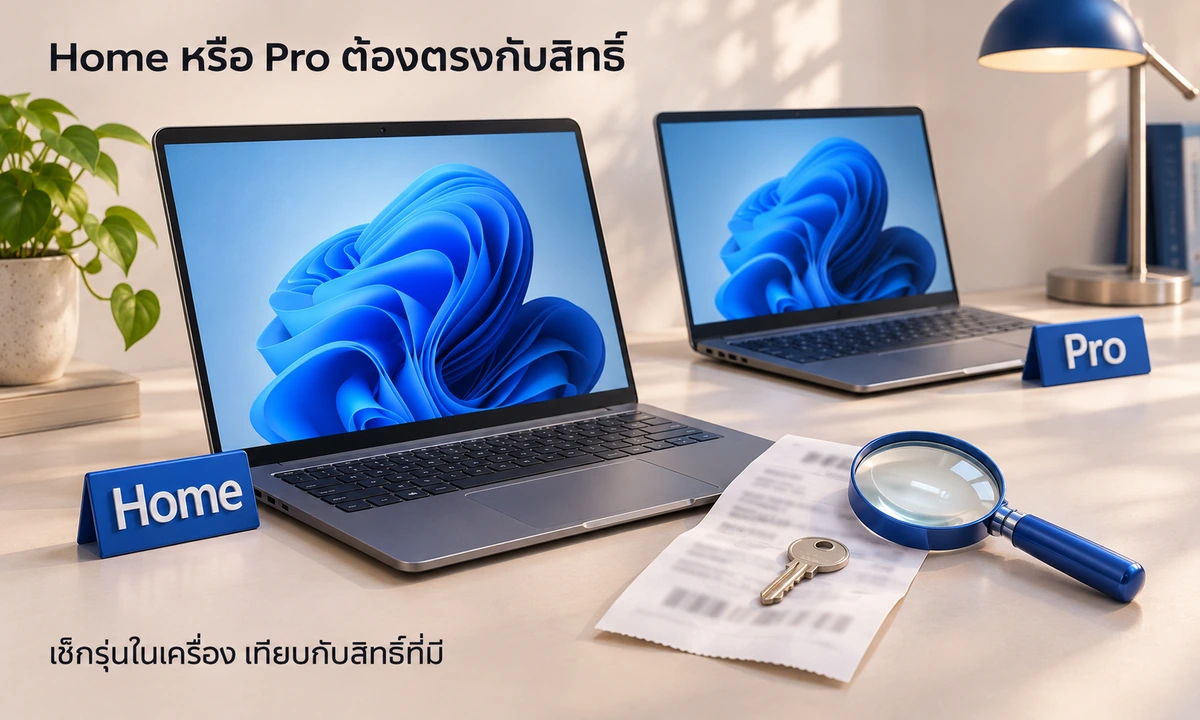
Home and Pro are different sub-models, or what is called editions. The original key and license must match the edition you intend to activate. For example, if a laptop comes with Home from the factory, if you install Pro, the original Home license may not be able to activate Pro.
Compare the edition name on the Activation page with the purchase email, product box, or information from the machine manufacturer. If you cannot remember which edition the machine previously used, try checking the documents received at the time of purchase or ask the shop that installed Windows first.
- Install Pro but has Home license You may need to go back and reinstall Home to match the license. Entering a Home key into Pro does not cause the system to switch back to Home. automatically. Back up your data before reinstalling.
- Use Home but bought Pro key Check how the key can be used for an edition upgrade. Read more at How to upgrade Windows Home to Pro And check the key’s conditions before starting
Microsoft has different solutions based on the installed version and rights, see more at Troubleshooting when Windows version does not match Digital license
Check internet, date and time, and Windows Update
Before trying to enter the key again, check these basics first because Windows must be able to contact Microsoft’s activation service
- Internet Try opening the website to check if the device is online; if it’s a company network with connection issues, contact IT
- Date and time Go to Settings > Time & language > Date & time to check the date, time, and time zone are correct, especially when you see the code This issue is very common among customers
0x80072F8F - Windows Update Go to Settings > Windows Update and check for updates; if the system asks to restart, save your work before restarting the device
If the same code remains, do not disable the firewall or security software as a trial fix. Continue with the code table below, and avoid websites that ask you to enter your product key for a free key check.
Try using the Activation troubleshooting tool
Windows includes a troubleshooter to help identify the cause automatically. You may open it through the app Get Help or the button Troubleshoot on the Activation page by version and symptoms encountered
- Open the Microsoft Activation Troubleshooting page then select Run the troubleshooter in Get Help to start troubleshooting via the Get Help app
- If the Settings > System > Activation page has the button Troubleshoot You can start with this button, using an administrator account. For a company computer, ask IT to help check.
- Follow the instructions displayed by the system, then check the status again. If it still fails, note the latest error code because the code may change after troubleshooting
If the device is already activated, the Troubleshoot button may not appear, which is normal. For devices that have not yet passed, check the latest code and select the troubleshooting method in this table.
What to check for each error code when Windows 11 activation fails
Error codes can indicate the direction for troubleshooting, but a single code may have multiple causes. Before concluding that the key is invalid, read the full message on the device
| Error code found | How to troubleshoot and proceed |
|---|---|
0x803F7001 |
Windows does not find the license that is used to activate this device
Check whether the computer was previously activated and whether the installed Home or Pro edition matches the existing licence. If you have a matching key, try entering it through Change product key. |
0xC004F213 |
The system indicates that the Product key was not found. This may occur after hardware changes.
Check if you recently changed the motherboard or critical hardware, and review the ‘Activation after hardware changes’ section below. |
0xC004F210 |
The digital key or license may not match the installed version.
Compare the Home, Pro, or other edition installed on the device with the purchased evidence. |
0xC004F050 |
The entered key may not be able to activate the currently installed Windows.
Verify that the key is entered correctly and is compatible with this version. If the issue persists, contact the seller with the code and full error message. |
0xC004C008 |
The key may have been used on another computer or exceed the permitted number of uses, or This could be a random ownership check due to system connectivity issues.
Tell the seller or Microsoft which computer the key was used on and whether it was transferred, so they can check the terms before you buy another key. |
0xC004F074 or 0x8007232B |
The key may be incompatible with the installed version or the device may not be able to connect to the organization’s activation service.
For corporate devices, contact IT; for personal devices, consult the seller or installer. Do not connect to a KMS server of unknown origin. |
0x80072F8F |
The date and time may be incorrect, or the activation service may not be connected.
Check the date and time and internet connectivity. If the issue persists, save the error message to send to support. |
If the code shown on your computer is not listed here, see more codes at Microsoft Activation error code Or send the code to support for verification. Do not attempt to use commands from multiple websites without knowing which issue to resolve.
Where do I enter a key I already have?
After checking that the key matches the edition installed on your computer, open Settings > System > Activation > Change product key then click Change Enter the 25-character key from your email or the documentation you received. Watch for extra spaces when copying it, then follow the on-screen instructions.
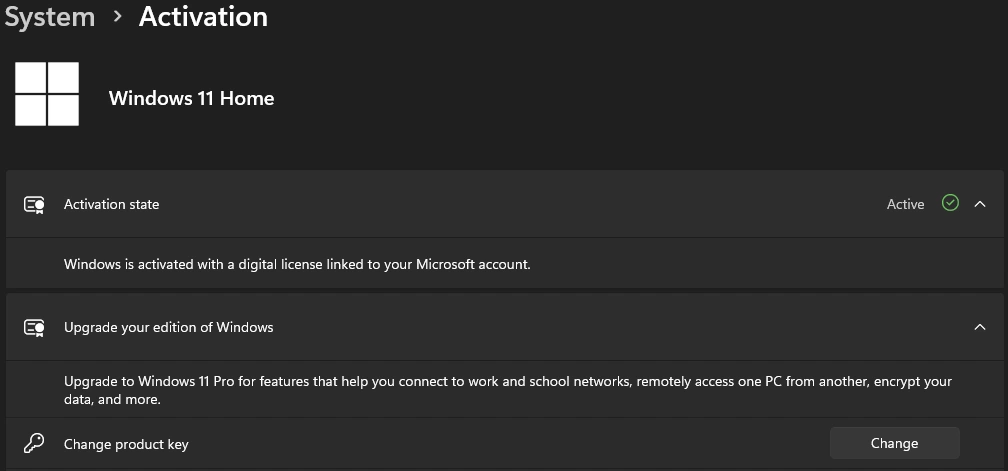
If your computer uses a digital licence, you may not have a separate key to enter. You do not need to extract a key using another program every time you activate Windows. If you are about to reinstall Windows, read the differences between a product key and a digital licence, and how to prepare for reinstallation first.
If you cannot find your key, start with your purchase-confirmation email or product packaging, or contact the seller through the channel you purchased from. For details, see Microsoft’s guide to finding your product key
Activation worked before, but fails after reinstalling Windows or replacing the motherboard
If you have just reinstalled Windows on the same computer First, check that you installed the same Home or Pro edition as before. A computer that already has a digital licence may activate when connected to the internet. Skipping the key-entry screen during installation therefore does not always mean you need to buy a new key.
If you have just replaced the motherboard or other major hardware Windows may not find a licence matching the new hardware. Check the licence type and transfer terms first. If the licence supports this and was previously linked to your Microsoft account, try reactivating with the same account by following Microsoft’s instructions.
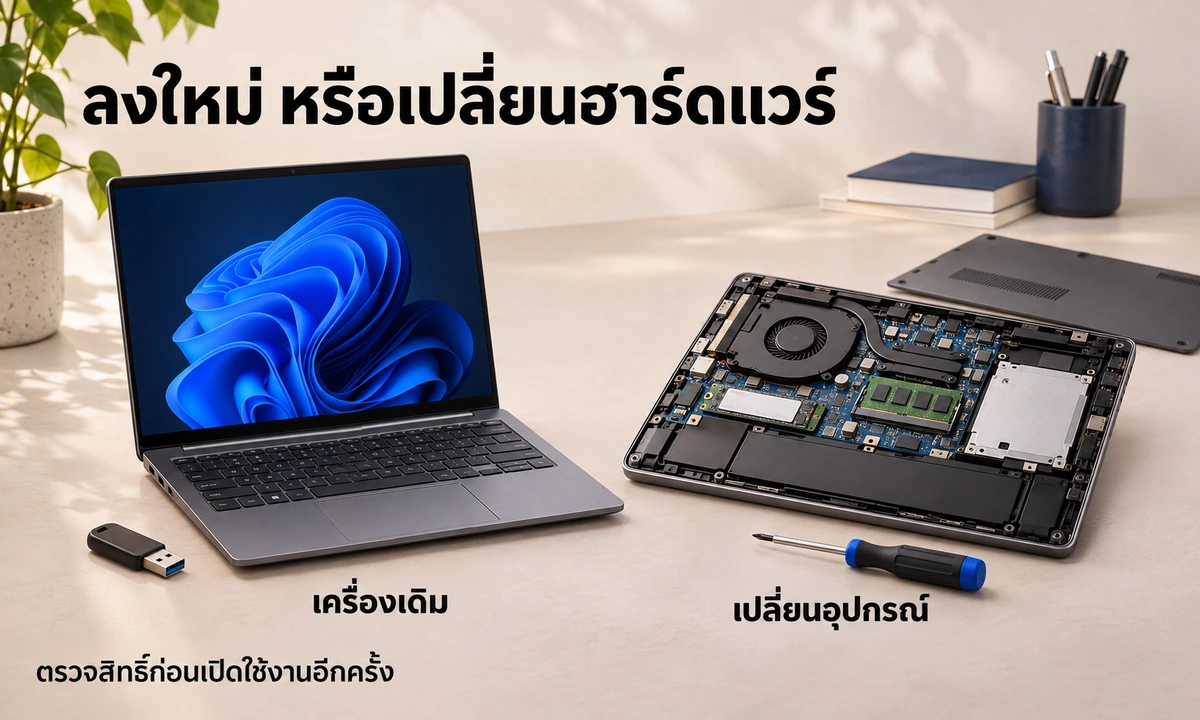
If supported, open the problem fix from the Activation page if the option is found I changed hardware on this device recently Follow these steps in order
- Select the option and then click Next
- Sign in to the Microsoft account that was previously linked to the device’s rights
- Select the original device from the list and check the box This is the device I’m using right now Before clicking Activate
If your device is not in the list, check if the original account is correct, then contact support. Do not select another device instead. Details can be read from Microsoft’s guide to reactivating Windows after a hardware change
Account binding does not allow all keys to be moved to another device Specifically, products that state Device cannot be moved, including changing the motherboard or the system-installed SSD Follow that product’s terms. If unsure, tell the seller exactly which components you replaced before trying to activate again.
Check again if activation was successful
Go back to Settings > System > Activation Then check if the status has changed to Active or if a message says activation was successful. If the system asks to restart, save your work and check the status again after turning on the machine.
You should check the status directly on this page instead of just checking if the watermark in the corner of the screen has disappeared. If it still shows Not active, keep the latest code for contacting support.
Not yet activated, what information should be sent to the seller
If you follow the steps and Windows 11 activation fails, prepare the following information before contacting the seller, the device manufacturer, or Microsoft to help diagnose the issue more accurately.
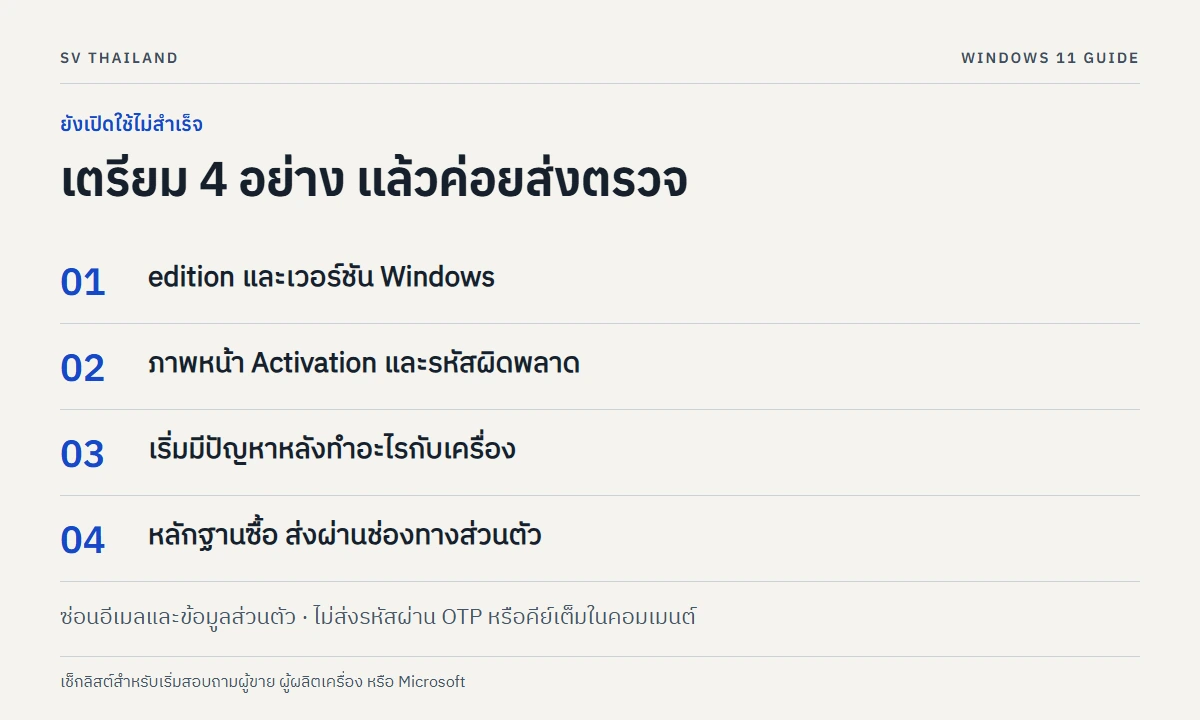
- Windows version and edition View under Settings > System > About in the Windows specifications section
- Activation screen image Show the full message and error code, but hide the account name, email, and personal information
- Actions taken before the issue occurred For example: Reinstalling Windows, changing the motherboard, or moving to another device, along with indicating whether the device was previously functional.
- Purchase evidence For example: Order number sent through the seller’s private channel
If Windows was pre-installed on the device since purchase, contact the device manufacturer first. For purchased keys, contact the seller with purchase evidence. If contacting Microsoft, go directly to the Get Help website or app without posting the full product key, password, or OTP code in the comments
SV Thailand customers can send their order number, Windows version and error code through SV Thailand store LINE Help with initial diagnosis. If the issue requires purchasing new licenses, select the correct edition, number of devices, and migration conditions that match your needs
Common questions
Does using KMS mean it’s a Windows license that’s invalid?
Not always. KMS is a server-based activation system that organisations may use under their licensing rights. That does not justify connecting a personal computer to an unknown server. If a personal computer shows an organisation-related message, first ask the installer about the origin of Windows and the key. However, most of the time, copies installed by computer shops or downloaded as free files are cracked, because those providers do not have the relevant portal entitlement.
If it’s activated, does that mean it’s genuine?
You cannot conclude this from activation status alone. Microsoft explains that activation matches a key or digital licence to a device; it does not confirm the origin of Windows in every case. Keep proof of purchase and check the licence conditions. For more details, see Microsoft’s explanation of activation
Content last reviewed on 3 November 2026, referring to Microsoft documentation. Screenshots are examples from the credited sources. Menus may vary by the device’s Windows version and language.

Comments