


Before backing up a Windows key, you should start by checking the license type and edition being used, not just looking at the 25-character code from a key reader program. The original article mentioned Dism++ briefly, so this version adds what needs to be saved and limitations to prevent the misunderstanding that extracting the key equals having the right to move the license to another machine.
How is Product key different from Digital license
A Product key is a code for activation, while a Digital license is an activation method that does not require you to manually enter a code every time. The methods for checking and the evidence that must be kept differ depending on the channel through which Windows was obtained. Do not interpret that if a key reader does not find a key, the system does not have a license to use it.
What to keep before backing up your Windows key
Back up the Windows key along with system version data and purchase evidence. Do not store license information only on the device that will be wiped.
How to back up system version and status before wiping the device
For Windows 11: Open Start > Settings > System > Activation. For Windows 10: Open Start > Settings > Update & Security > Activation. Note the edition name and status message that appears, then save a screenshot in a secure location.
If you need to check additional system version information, open Settings > System > About and note all Windows specifications. Separate the Edition, Version, and OS build. This information helps select the correct installation version and explains issues to sellers more quickly.
- Activation status screenshot without full key display
- Windows version and edition (Home or Pro)
- Purchase-confirmation email, product box, sticker or seller documentation, depending on how you received it
- Personalized account information related to your license. Do not share passwords or recovery codes with others.
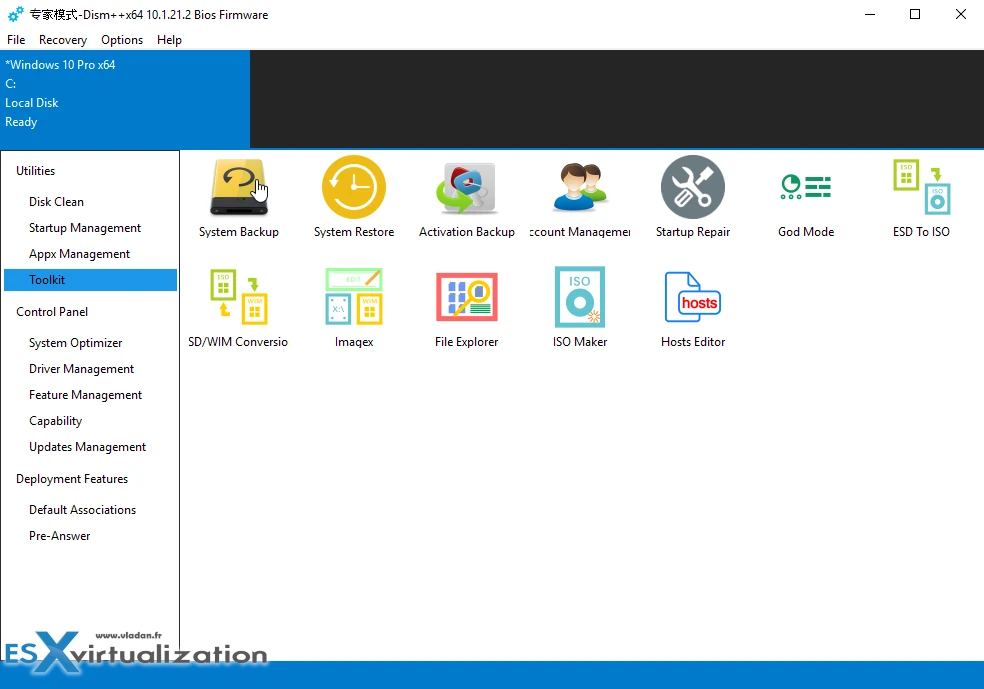
Do you need to use Dism++ to extract the key
Not applicable for all cases. This guide has not been tested with the current version of Dism++. Do not download older files from the original link. Keys that can be read by tools may not be valid purchase evidence or sufficient for activation on another device. Always verify the original source of your license.
Which edition should you choose when reinstalling Windows?
Match your license to the original (e.g., Home, not Pro). If you use Digital license and install the original edition on the same device, the system may activate online under the license terms. If you change critical hardware, additional activation issues may arise. Reading keys does not change the license transfer conditions.
If you are planning to purchase a new license and need transferable conditions, see details Windows 11 Pro FPP USB Check the product license transfer conditions before making a decision. Backing up the product key of the original license does not convert that license to FPP.
If Windows cannot be activated after installation
Check the edition, date, time, and internet connection first. Note the error code and use the Activation troubleshooting tool or contact the seller with evidence that hides private information. Do not post the full product key publicly, and do not use unlock programs instead of resolving the license issue directly
Continue reading
- How to Reset Windows 11 and 10: How are ‘Keep files’ and ‘Remove everything’ different?
- Upgrade Windows Home to Pro: Check the license and edition before changing the key
Sources and verification date
Reference documents reviewed on 28 October 2026. Menu names and options may vary by version, language and device policy. Illustrations are screenshots and images from the credited sources; their appearance may vary by version. This does not confirm testing on every type of computer.

Comments