


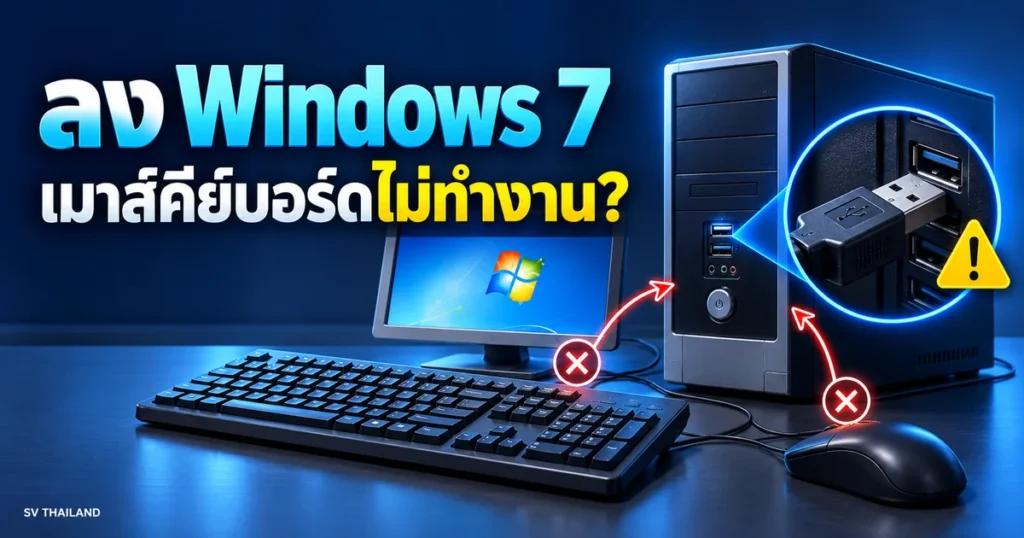
Windows 7: Mouse and keyboard not working during installation. This may be related to the USB drivers of the installation media. Even if buttons can be pressed in BIOS normally, the device model must be checked first, because changing USB ports or enabling Legacy USB may not fix it on all machines.
Why can it be used in BIOS but not in Setup?
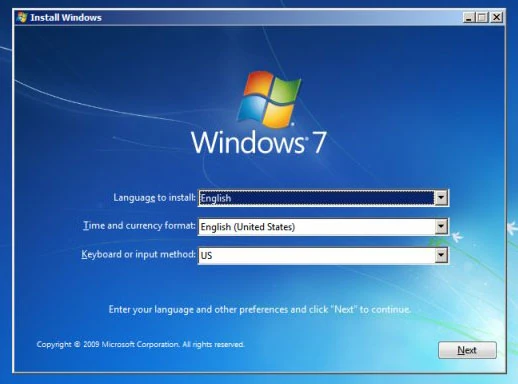
BIOS/UEFI and Windows Setup rely on different device support. Intel states that the installation media Windows 7 There is no native USB 3.0 support, so USB devices may become unresponsive when entering the installation stage. The fact that the keyboard is still usable in BIOS does not confirm that the installation media has the drivers ready.
Check before changing values in BIOS
Windows 7 Mouse/Keyboard Not Working: May vary by chipset and installation media. Start by checking the device version. Do not change multiple settings at once without recording the original values.
- Write down the full motherboard or computer model
- Open the manufacturer’s support page to verify if there is a Windows 7 driver for that version.
- Read the manual to determine which port is connected to which controller. Do not conclude based solely on port color.
- Record the current settings before changing them. Do not disable security features based on a guide for a different model.
Can changing ports or using PS/2 help?
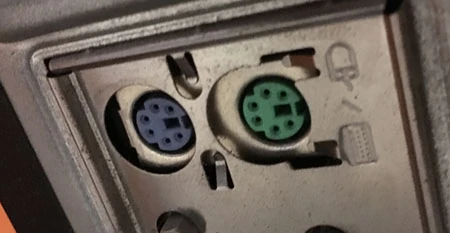
This may only help machines that actually have supported controllers and ports. Some USB 2.0 ports still work through xHCI, so it should not be concluded that changing ports will definitely fix the issue. For PS/2, there must be a physical port and compatible devices; using an adapter does not guarantee results for every case. But from experience, most of the time, plugging into this port works. However, newer mouse models may not work. Try finding a conversion adapter to plug in.
If you must use older systems
Before preparing the installation media for a specific version, ensure the media and driver packages are from the manufacturer. This guide does not distribute modified ISOs or driver bundles that cannot be traced. If there are no drivers for the specific version, consider using a supported system instead. Do not repeatedly try changing BIOS settings.
For an existing computer that still needs Windows 7 Pro, see Windows 7 Pro OEM for 1 Machine Ensure the edition and license conditions match before purchasing. Activation keys do not include USB drivers or fix mouse/keyboard issues during installation.
Current limitations to be aware of
Windows 7 is no longer generally supported. This article is for explaining issues with older systems, not for recommending installation on new online systems. When planning a system migration, check compatibility with applications and devices.
Sources and verification date
Reference documents reviewed on 28 October 2026. Menu names and options may vary by version, language and device policy. Illustrations are screenshots and images from the credited sources; their appearance may vary by version. This does not confirm testing on every type of computer.

Comments