


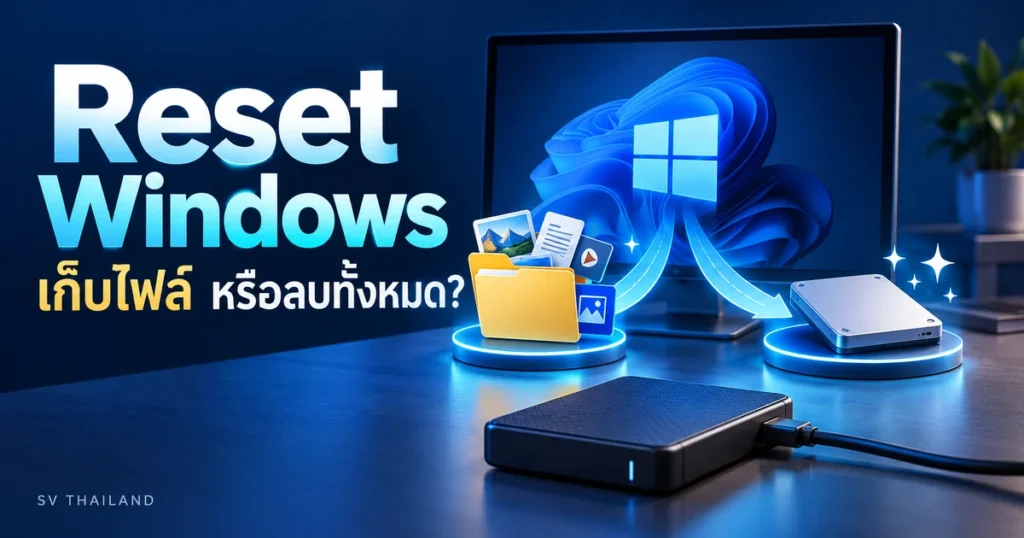
Reset Windows is a full system reinstall via recovery tools. The effect on files and apps depends on the option you confirm: Keep my files is not a backup and does not save all installed programs. You should prepare backups before starting every time
For Windows 10 Users: General Support Ends October 14, 2025. This step is still available for maintaining older devices but does not automatically provide system support. Before long-term use, check the options that are suitable for your device.
What to prepare before resetting the machine
Back up documents, photos, and work outside the machine Check your account for app login and save software license evidence If encryption is enabled BitLocker Prepare a recovery key somewhere accessible from another device. Connect the computer to power, then disconnect unnecessary external disks after backing up.
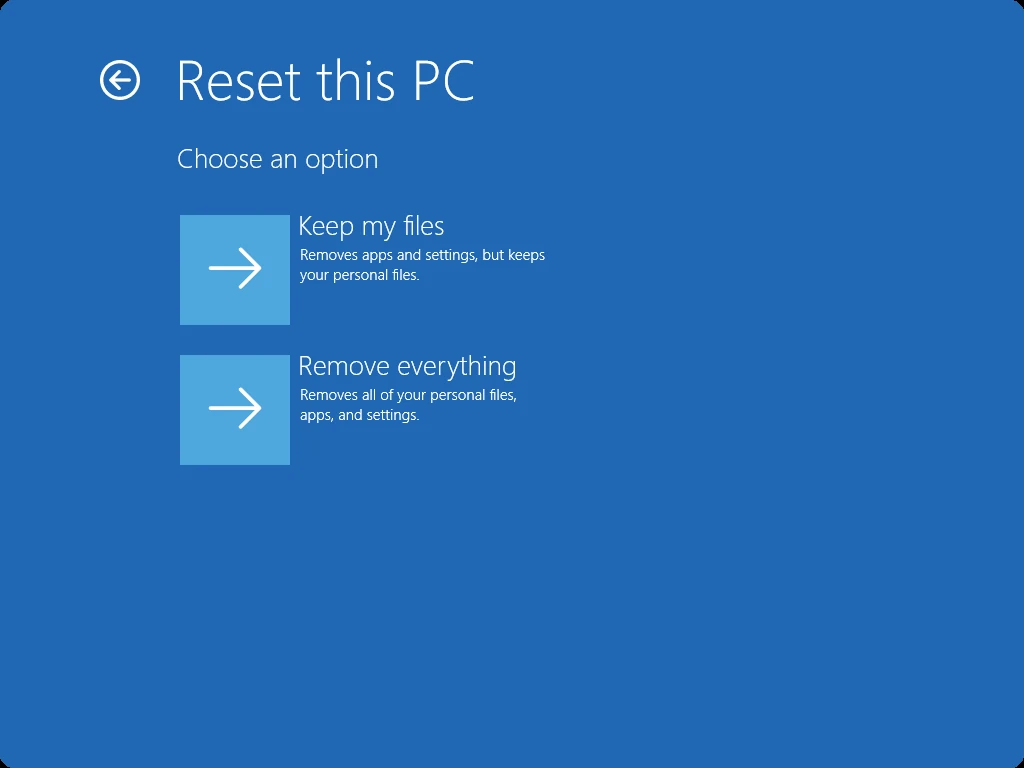
Keep my files vs Remove everything
| Options | Effects you should know about |
|---|---|
| Keep my files | Install Windows anew while preserving personal files but removing apps and resetting settings. This is not a backup |
| Remove everything | Delete personal files, apps, and settings. You must read the scope of the drive to be deleted on the summary page. This wipes everything, similar to a fresh Windows installation. Recommended for those who want to clear various values, clear viruses, and fix errors. |
The additional data cleanup option takes longer And it is not a certification of data destruction according to corporate standards. Do not interpret this option as deleting all drivers or solving all hardware issues (it covers almost all cases).
Cloud download vs Local reinstall
Cloud download: Download a new Windows set, which requires internet connection and sufficient data. Local reinstall: Uses files already on the device. Both methods differ from upgrading from Windows 10 to Windows 11 and still require reinstalling apps according to your license rights
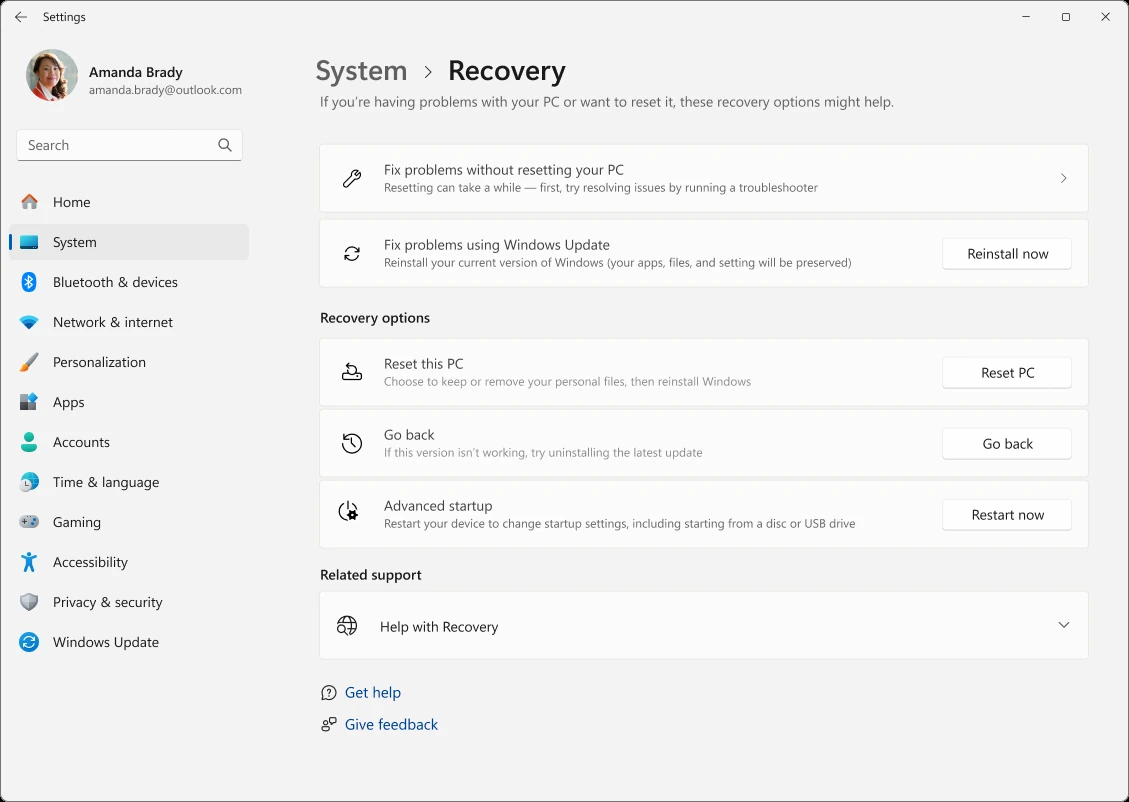
Where to open Reset this PC
- Windows 11: Settings > System > Recovery > Reset PC
- Windows 10: Settings > Update & Security > Recovery > Reset this PC > Get started
- Choose what happens to your files and how Windows is reinstalled. Read the summary again before starting.
During reset, there may be black screens and multiple restarts. Do not turn off or force restart just because you see a black screen. If the machine cannot enter Windows, you may use the Windows Recovery Environment to access recovery options. However, if the disk is damaged or work has not been backed up, you should stop and evaluate before using commands that overwrite data.
What to check after resetting
Check activation status, update system, test devices, and reinstall apps from official sources. Back up files before restoring. If the original issue persists, note symptoms and error codes to distinguish hardware problems. Do not reset multiple times without additional information
Resetting the device does not mean you need to purchase a new key First, check your existing licence (OEM licences usually remain) and the edition. If you genuinely need to buy a new licence, see Windows 11 Home / Pro from Softvision By selecting the correct version that matches the installed version and reading the product option terms
Continue reading
- How to install Windows 11 and 10 drivers correctly for your model and fix issues after updates
- After installing Windows 11 and 10, what should you set: Time, Language, and This PC
- Back up your Windows key before reinstalling: How do Product key and Digital license differ?
Sources and verification date
Reference documents reviewed on 28 October 2026. Menu names and options may vary by version, language and device policy. Illustrations are screenshots and images from the credited sources; their appearance may vary by version. This does not confirm testing on every type of computer.

Comments