


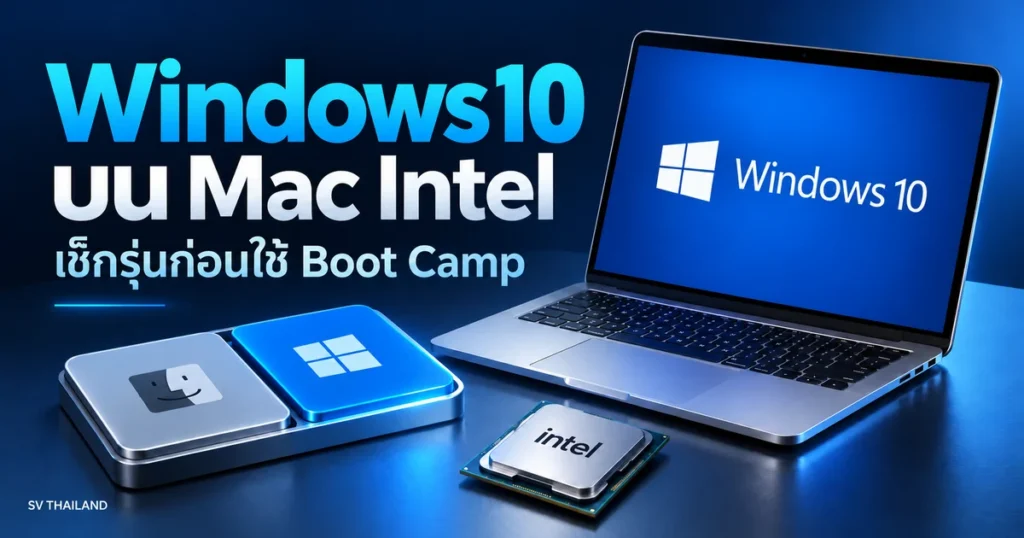
Boot Camp is a method for installing Windows 10 on Intel Macs supported by Apple; it is not a method for all Macs. Before following the old article, check the chip, device model, and Windows support status to avoid partitioning devices that do not support this approach.
What’s the difference between Mac Intel and Apple silicon
Open Apple > About This Mac and check Processor or Chip. For Apple silicon, such as the M series, the Intel Boot Camp guide does not apply. Do not select an ISO or driver package based only on the MacBook name, because the same model name may cover different architectures.
What to check with Apple before installing
Check the supported-model list in Apple’s guide, update macOS as supported by your Mac, and back up before partitioning. Check free space and the installation-media requirements for that model. Not every Mac requires a USB drive created using the same steps as the older illustrations.
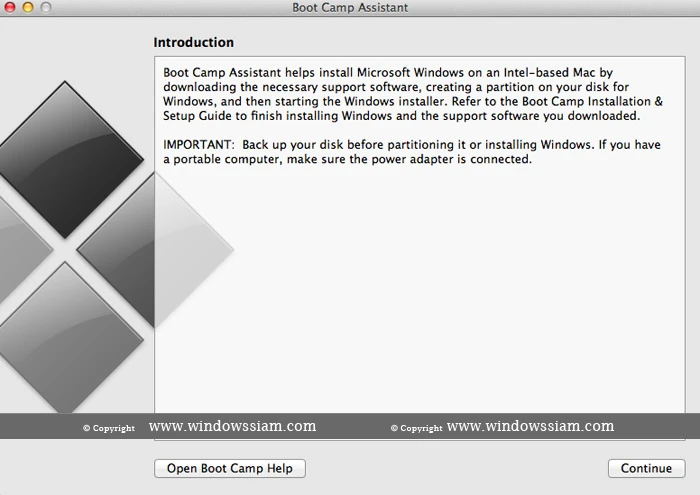
Boot Camp installation steps
- Prepare the Windows 10 installation files in accordance with Apple’s requirements and your Windows licence.
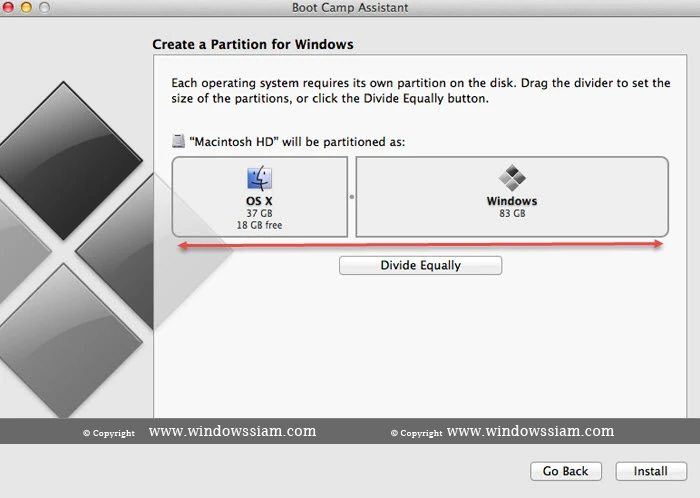
- Open Boot Camp Assistant in Utilities and follow the instructions to allocate space for Windows.
- During installation, select the BOOTCAMP partition as instructed by Apple. Do not guess and format another disk or partition.
- Once in Windows, install the Windows support software provided by Boot Camp, then check the hardware.
- Switch operating systems at startup using the Option key, following Apple’s instructions.
Should you still start a new Windows 10 installation?
General support for Windows 10 ended on 14 October 2025. Installing it through Boot Camp does not automatically extend security updates. If you need older applications, check current support options and their terms before deciding. Do not assume that Boot Camp supports Windows 11 simply because it can install Windows 10.
If you only need to use document work on macOS, try checking Office Home and Business for Mac is another option; choose a version compatible with your Mac’s macOS. Using Office for Mac does not install Windows or enable other Windows applications to run on macOS.
If you want to remove Windows from your Mac
Back up files on the Windows side first, then remove Windows through Boot Camp Assistant following Apple’s guide, rather than deleting partitions with another tool without understanding the disk layout. If the computer holds important data, check your backup copies before every change to the allocated space.
Continue reading
- How to install Windows 11 and 10 drivers correctly for your model and fix issues after updates
- Back up your Windows key before reinstalling: How do Product key and Digital license differ?
Sources and verification date
Reference documents reviewed on 28 October 2026. Menu names and options may vary by version, language and device policy. Illustrations are screenshots and images from the credited sources; their appearance may vary by version. This does not confirm testing on every type of computer.

Comments