


After installing Windows, do not immediately install all programs at once. First, ensure all basic settings are complete: activation status, drivers, time, language, and backup. This article builds on the previous guide about 24-hour clocks and the This PC icon to check after installation in order
For Windows 10 Users: General Support Ends October 14, 2025. This step is still available for maintaining older devices but does not automatically provide system support. Before long-term use, check the options that are suitable for your device.
After installing Windows, check the version and activation status
Open Settings > System > About to check if it is the intended Windows version and edition. Then, for Windows 11, check System > Activation; for Windows 10, check Update & Security > Activation. If not activated, note the error message and verify the license matches the edition before entering a new key.
Update the system and test devices
Use Windows Update to check related items, restart as the system indicates, and test sound, network, camera, and required devices. If some parts do not work, open Device Manager and use drivers from the manufacturer that match the exact model. Do not install driver sets from unknown sources just to clear the warning list.
Set Thai time and 24-hour clock
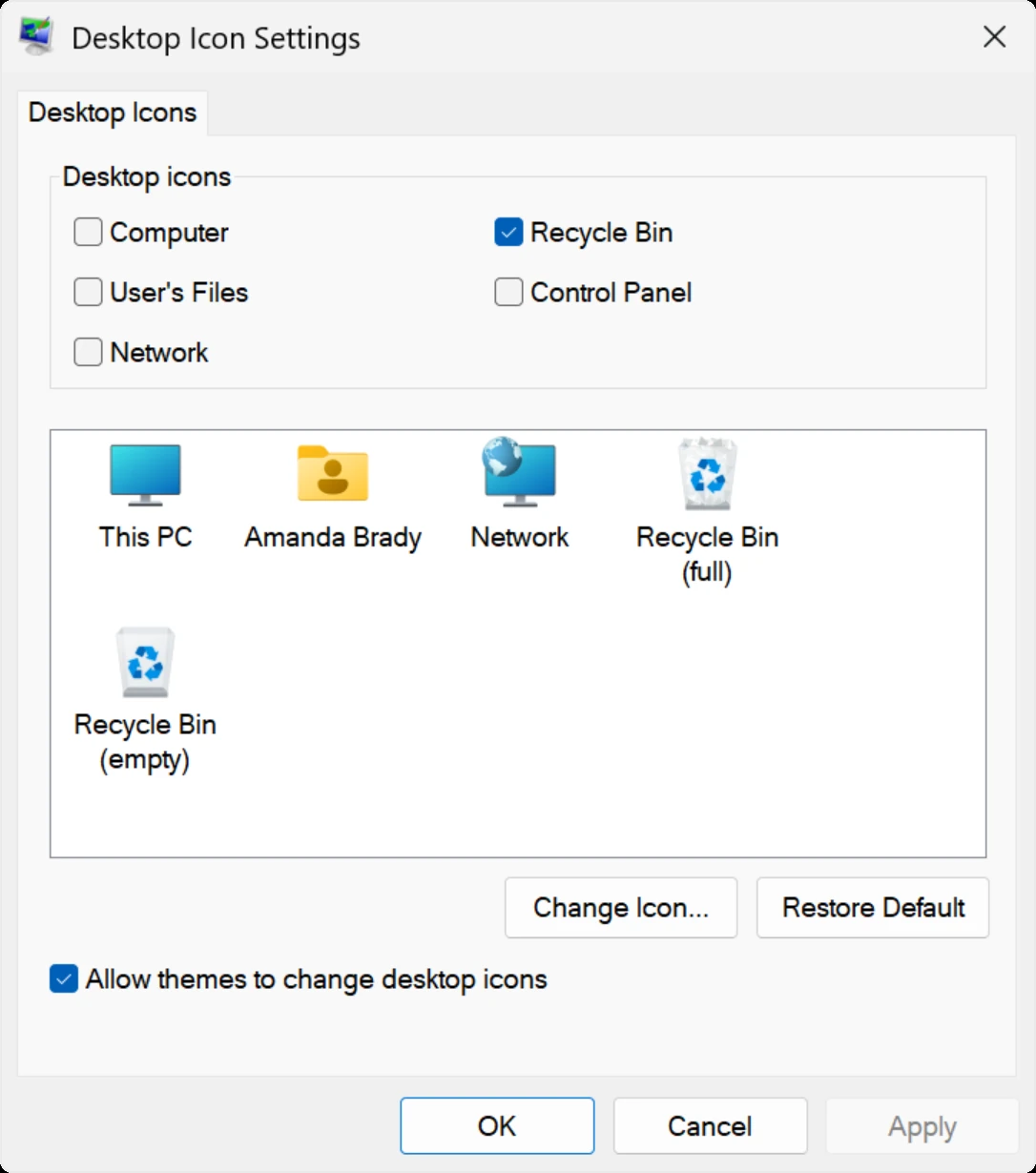
Open Settings > Time & language > Date & time to check date, time, and time zone. For Thai users, select UTC+07:00 time zone (Bangkok) if the automatic time zone selection is incorrect. Before adjusting manually, verify the correct time zone
The clock format is a different value from the time zone. The accessible backup method from Control Panel is Clock and Region > Region, then open Additional settings > Time. The HH:mm format uses 24-hour hours, while h or hh is the 12-hour format. Menu names in Settings may differ depending on the system version. After saving, check the clock in the taskbar again.
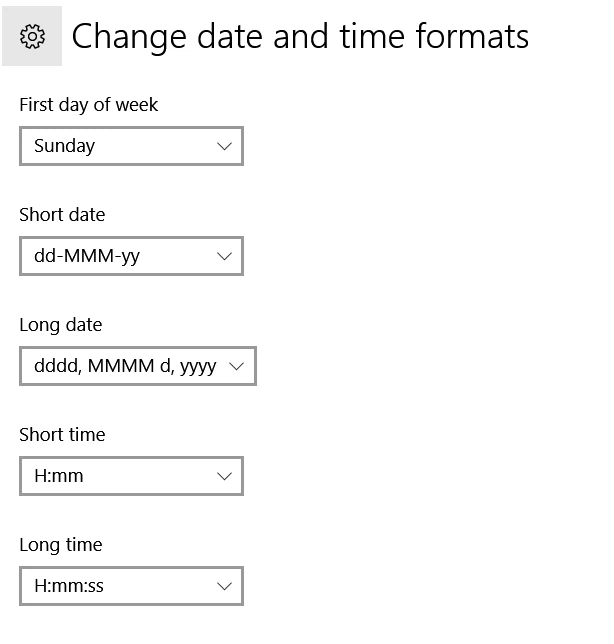
Add This PC and Recycle Bin to Desktop
- Right-click on Desktop and select Personalize
- Open Themes and select Desktop icon settings
- Select Computer for This PC and other icons you need, such as Recycle Bin, then click Apply and OK
If the icon is selected but not visible, right-click Desktop > View and check Show desktop icons. The icons in this section are different from regular application shortcuts. No additional software is required to display This PC.
Set language and prepare backups
Try typing Thai and English and switching with Win + Space to ensure it’s working. Then, install software from the developer and save important documents in a verifiable backup system. Having files only on Desktop is not backup. Try opening at least one copy before deleting old data or sending the device to someone else.
If you need to install additional office suite, see details Office Professional Plus 2024 for 1 PC And check the license type and supported system before purchasing. If you already have an existing Office license, check the re-installation method according to that license first.

Comments