


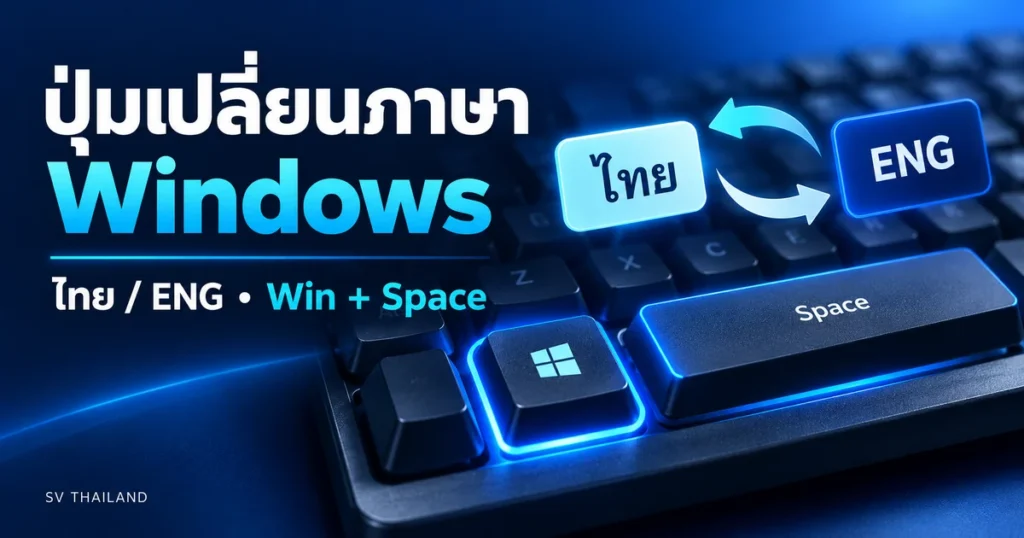
The Windows language switch button uses Win + Space to switch installed keyboards immediately. Users who are more comfortable with the keyboard can check the Grave Accent option in the advanced settings. Changing the input language is not the same as changing the Windows menu language.
For Windows 10 Users: General Support Ends October 14, 2025. This step is still available for maintaining older devices but does not automatically provide system support. Before long-term use, check the options that are suitable for your device.
Check the language and keyboard layout first
For Windows 11, open Settings > Time & language > Language & region. For Windows 10, open Settings > Time & Language > Language. Check if Thai and English are listed. If missing, select Add a language and install the desired language.
Open the Language options for that language and check Keyboards. Select the keyboard layout that matches your keyboard, e.g., Thai Kedmanee. Having multiple keyboard layouts in the same language may require pressing the switch multiple times. Check the name before removing the layout that isn’t needed. Do not delete the language required for password entry.
Windows language switch button: Use Win + Space
- Open a text editor program, such as Notepad
- Hold the Windows key and press Space to select the language option
- Release the button and try typing. Check the language indicator on the taskbar
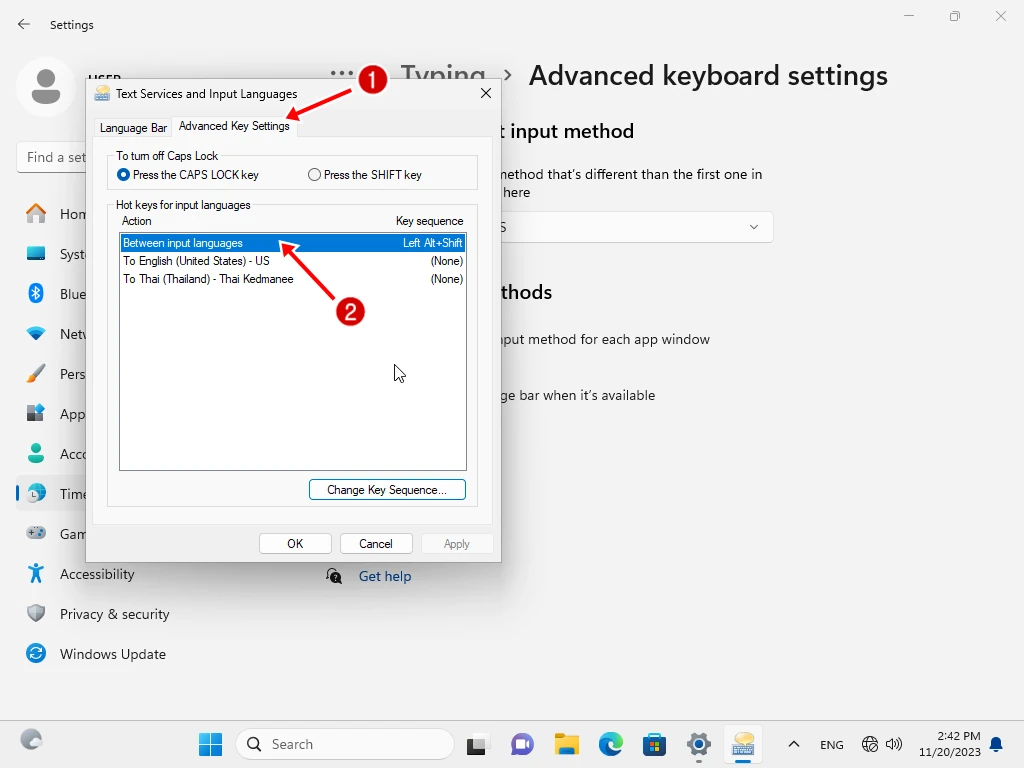
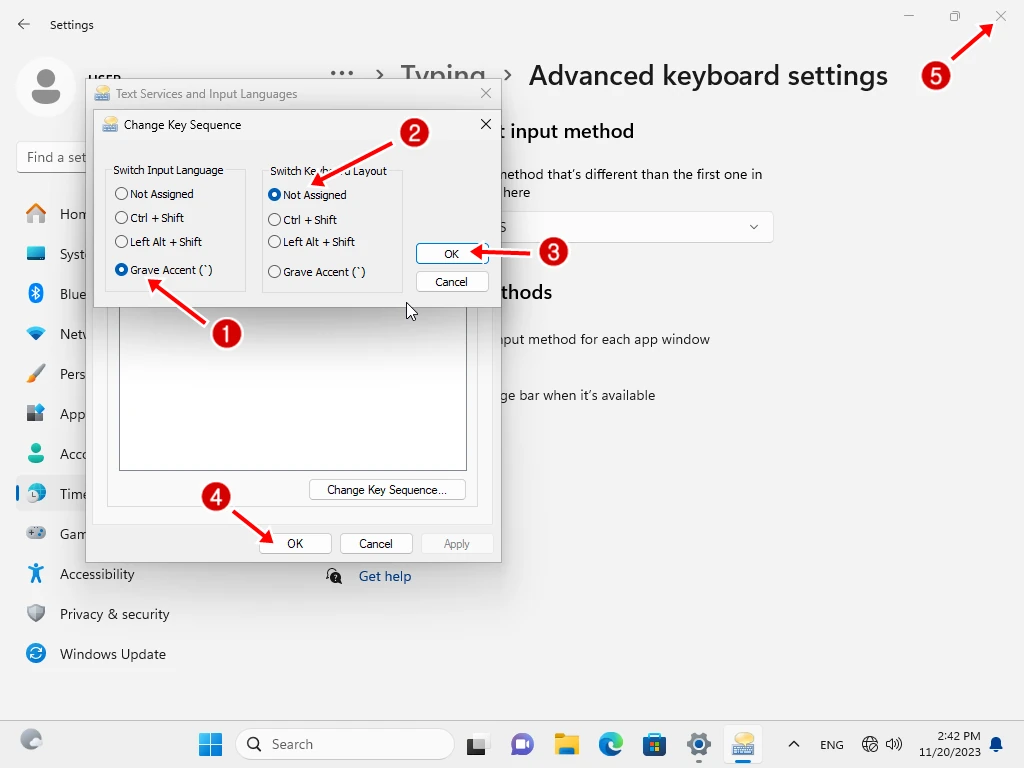
Set the language shortcut to the grave accent key
Search Advanced keyboard settings From the search bar in Settings, Windows 11 is usually under Time & language > Typing Then open Input language hot keys Or Language bar options depending on the version shown
- In the Text Services and Input Languages window, open Advanced Key Settings
- Select Between input languages and press Change Key Sequence
- If there is a Grave Accent option in Switch Input Language, select it, then press OK and Apply
- Go back and test in a real program. If this option is not available, use Win + Space instead. No registry edits are necessary.
The menu name may differ depending on the Windows version and language. The same key on an English keyboard types grave accent and the tilde with Shift, but the keyboard shortcut does not always require pressing Shift together. Test according to the selected settings.
Language does not switch when you press the shortcut: what to check
- If there is only one keyboard, add another language first
- If Win + Space works but the keyboard shortcut does not, open the keyboard shortcut settings to check the actual recorded value and test outside of games or programs that capture keys
- If the characters do not match the key, check the Kedmanee, Pattachote, or selected English keyboard layout
- If it is an organization device and the option is locked, have the administrator check the device policy
Windows Home Single Language – can I type in two languages?
The display language restrictions should not be mixed with keyboard layout. Adding a keyboard for Thai and English typing is a separate setting from the menu language change. Therefore, check the above settings before deciding to change the Windows version
If you are purchasing a new system, you can check Windows 11 Home / Pro ESD Then select the edition that matches your work and required rights, but the keyboard switch for Thai-English in this article does not require purchasing a new Windows
Home / Pro editions: System menu language can be switched at any time (e.g., switch between Thai and English menus in Settings) Single language editions: You must reinstall Windows if you want to change the menu language
Home Single Language edition: the system-menu language is restricted to a single language from installation, but you can still type in multiple languages.


Comments