


After installing Windows, drivers should be updated starting with Windows Update, then check devices that are not working, before downloading from the manufacturer to match the version. Not all devices require driver update programs, and installing the latest version does not guarantee the best compatibility with your device
For Windows 10 Users: General Support Ends October 14, 2025. This step is still available for maintaining older devices but does not automatically provide system support. Before long-term use, check the options that are suitable for your device.
What are drivers and when should they be installed
Drivers enable Windows to communicate with hardware such as the graphics card, audio, and network adapters. After a new system installation, check if these devices are functioning properly. If the computer is working normally, do not update all drivers at once just because new ones are available. Updating one component at a time helps identify the cause of issues when problems occur.
What do you need to prepare for Windows driver installation
- Open Settings > System > About and note the Windows version and System type
- For laptops, check the full model name from the device or manufacturer’s app. For desktops, check the motherboard and graphics card separately.
- Back up important files, plug in the power, and note the previous driver version if troubleshooting.
- If the device still cannot connect to the internet, download the network drivers from the manufacturer’s website on another computer and copy them via USB.
Method 1: Use Windows Update first
- On Windows 11, open Settings > Windows Update and check for updates. For Windows 10, use Settings > Update & Security > Windows Update
- Install the recommended updates and restart when prompted
- If drivers are still missing, check the Optional updates in Windows 11 under Advanced options. Select only the devices you need to update; it is not necessary to install all updates.
Method 2: Download from the manufacturer’s website for the exact model
Go to the official manufacturer or component website, select Support or Drivers, enter the full model number, and check the operating system and architecture before downloading. For laptops, check the pre-configured package provided by the manufacturer, as it may have specific adjustments for the model. Install according to the package instructions and restart as specified.
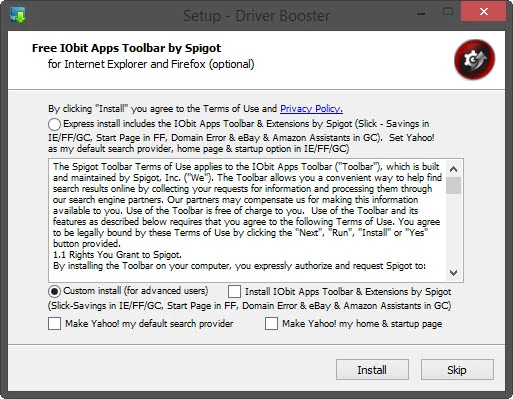
Avoid websites hosting files from unknown sources, installers that request to disable security systems, and programs that prompt to install software unrelated to your device. This guide does not use portable file links or Pro sets that are unverified and have unknown versions from the original article.
Method 3: Check devices in Device Manager
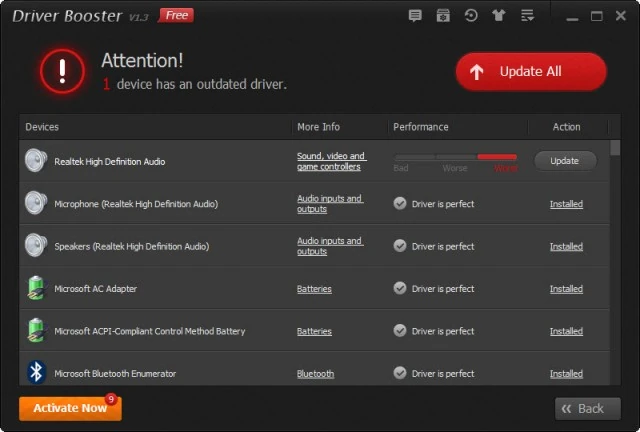
Right-click Start, select Device Manager, and find devices with a warning mark. Open Properties to read the Device status. If you have downloaded the driver file from the manufacturer and extracted the files, select Update driver > Browse my computer for drivers and point to that folder. Do not select files with similar names without checking the model.
Audio disappears or Wi-Fi disconnects after an update: what to do
If symptoms start immediately after changing drivers, open the device Properties > Driver > Roll Back Driver when this button is available and the account has administrator privileges. If the button is grayed out, check the previous version package from the manufacturer instead. Do not uninstall the network driver before preparing files for reinstallation.
Do you need an automatic driver installer?
Not required for all devices. Start with Windows tools and official packages first. If you select other tools, check the developer, terms of use, and install items one by one. Do not assume that a scan finding new items means the original driver has issues.
After completion, test Wi-Fi, Bluetooth, display, and real devices while noting what adjustments were made. This method helps resolve future issues more precisely than updating everything once.
To compare additional tools, see Avast Driver Updater by Softvision And check system compatibility with version requirements before purchasing. This tool is an optional extra, not required for following Windows Update or downloading from the manufacturer above.
Continue reading
- After installing Windows 11 and 10, what should you set: Time, Language, and This PC
- How to Reset Windows 11 and 10: How are ‘Keep files’ and ‘Remove everything’ different?
Sources and verification date
Reference documents reviewed on 28 October 2026. Menu names and options may vary by version, language and device policy. Illustrations are screenshots and images from the credited sources; their appearance may vary by version. This does not confirm testing on every type of computer.

Comments